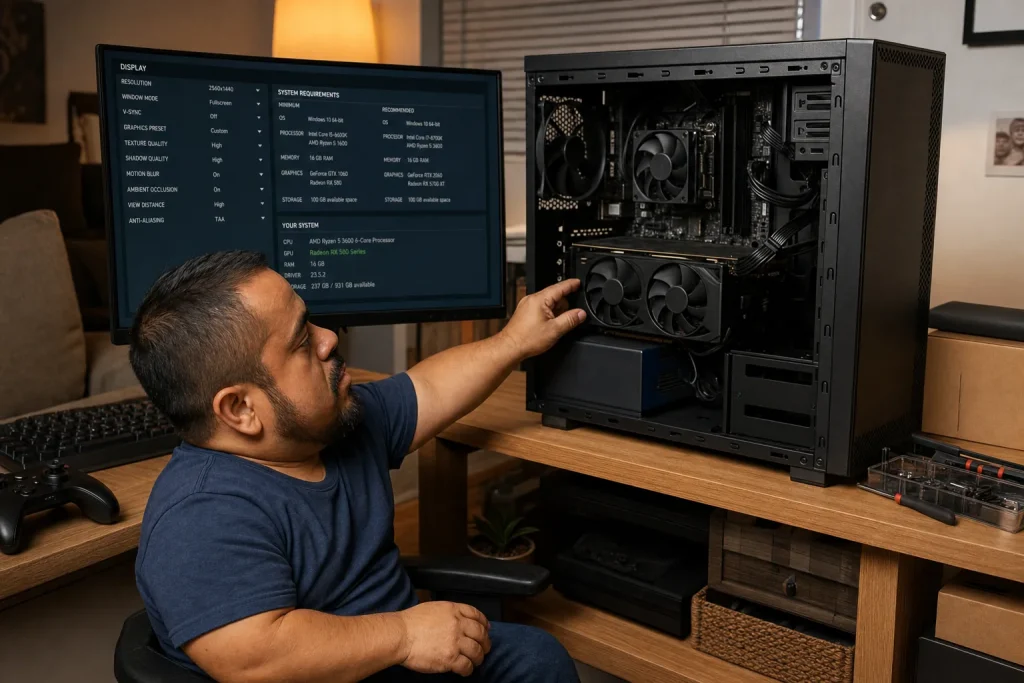
Can Your Computer Run This Game? How to Compare System Requirements
A game can meet the minimum requirements on paper and still run badly at the resolution, quality, or frame rate you expect. The usual mistake is comparing one familiar number, such as memory or storage, while ignoring the exact processor, graphics hardware, operating system, and performance target.
You should compare the game's minimum and recommended system requirements with your actual computer, then treat the recommended list as a starting point rather than a promise.
Find the official requirements for the exact version
Use the publisher's site or the game's official store listing, because requirements can differ between the original game and a remaster, expansion, virtual-reality mode, or updated release.
Check the operating system, the processor, the memory, the graphics processor, the graphics memory when stated, the storage space, the network connection, and the required account or platform. Also read recent update notes because a listing may not explain how later content changed storage or performance.
Identify what is actually in your computer
On Windows, System Information can show the processor, installed memory, system model, and other components. Microsoft's System Information instructions explain how to open the tool.
For graphics, confirm the exact model rather than accepting a family name such as "integrated graphics" or "RTX." Laptop and desktop versions with similar names can perform differently, and some computers contain both integrated and dedicated graphics.
On Windows, you can also run dxdiag, open each Display tab, and record the adapter name. Microsoft's DirectX Diagnostic Tool instructions explain that a computer may have multiple Display tabs when it contains more than one graphics adapter.
Available storage isn’t the same as total drive size. Leave room for installation, updates, temporary files, saved games, and the operating system instead of filling the drive to its limit.
Compare components in the right order
Meeting the memory requirement doesn’t compensate for an unsupported graphics processor, and a faster graphics card doesn’t fix a processor bottleneck in a simulation-heavy game. Neither one solves an unsupported operating system or missing graphics feature.
Minimum requirements usually describe the lowest supported configuration, but they may not state the resolution, quality preset, or frame rate behind that judgment. Recommended requirements can also target a different experience than the one you want.
Suppose a game lists 16 GB of memory and your computer has 16 GB. That match tells you only one part of the story. You still need to compare the processor and graphics models and decide whether you expect basic play at 1080p or high-refresh 4K output.
Compare unfamiliar processor and graphics names
First copy the complete model names from your computer and the requirement, including letters that identify a laptop, low-power, or other variant. Then compare the manufacturer generation, product tier, memory or graphics-memory requirement, and any named feature such as a DirectX version rather than assuming that a larger model number always means a faster part.
If the required graphics card is unfamiliar, look up both exact models and compare measurements from the same test source at the same resolution and settings. Treat the result as an estimate, especially for a laptop, because cooling and power limits can make two computers with similarly named parts behave differently.
For example, "Core i7" or "RTX" isn’t a complete comparison. An older high-tier processor may lose to a newer mid-tier one in the work a game emphasizes, and a laptop graphics processor can have a different power limit from the desktop part with a related name.
If you can’t establish that your exact processor or graphics adapter is at least in the same performance range as the listed part, assume the requirement is unresolved. That is safer than turning a guess into a purchase and hoping lower settings will repair it.
Use the refund window as a test, not a repair plan
Before buying, read the platform's current refund terms, including time limits and play-time restrictions. Then test the game promptly at the resolution and settings you intend to use.
Watch for unstable frame rates, overheating, crashes, control problems, and poor performance in demanding areas rather than only the opening screen. Close unnecessary background applications and update supported graphics drivers, but don’t download "performance boosters" from unknown sources.
Be realistic about upgrades
Desktop memory, storage, and graphics may be upgradeable, while many laptops have limited or no practical graphics upgrade path. Confirm power-supply capacity, physical space, cooling, motherboard compatibility, and warranty implications before ordering a part.
If one game requires replacing several major components, a different computer or platform may be the better value. You need to know more than whether the game will launch. Check how well your computer is likely to run it at the settings you want before buying a game that would require several upgrades.