Why Does a Website Work in One Browser but Break in Another?
A website that works in one browser can fail in another because browsers do not always support features at the same time, devices vary, extensions interfere, and code may depend on an assumption that was never tested. The goal is not to make every browser render every decorative detail identically. It is to keep the information and important tasks usable in the environments your visitors actually use.
You should define a supported browser and device range, perform cross-browser testing on critical tasks, and build a functional fallback for features that are not universally available.
Decide what support means for your site
Use analytics, customer information, and the devices required by your market to identify priority browsers and screen sizes, and include mobile devices, keyboards, and assistive technologies when they are part of real use.
MDN's cross-browser testing strategy notes that no team can test every combination and recommends focusing on the environments important to the target audience.
Document the range so "works everywhere" does not become an unlimited promise. Also define the critical tasks that must work, such as reading content, finding contact information, completing a form, signing in, searching, or paying.
Use standards and progressive enhancement
Standards-based HTML, CSS, and JavaScript give browsers a shared foundation. W3C describes WCAG as a stable, referenceable standard for accessible web content in its WCAG overview.
Progressive enhancement means starting with a usable core and adding richer behavior where supported. A modern animation may disappear on an older device, but the visitor should still be able to read the message and complete the task.
Do not mistake visual sameness for compatibility. A site can look nearly identical in two browsers while a keyboard user cannot reach the menu or a form silently fails in one of them.
For example, a contact page may look correct in Chrome and Safari while its date picker or validation script fails in one browser. A screenshot comparison will miss the problem, but submitting the form with valid and invalid data exposes whether the visitor can actually finish the task and whether the site reports an error they can act on.
Test complete tasks, not isolated screenshots
Automated services can reveal layout differences and unsupported features, but you should also perform the task by submitting the form, using validation errors, following the email confirmation, completing checkout, downloading the file, and returning with a saved session.
Test at narrow widths and with zoom because responsive failures often appear between popular device presets. Check slow connections and lower-powered devices when scripts, video, or large images are important to the page.
Browser developer tools are useful for quick checks, but they have limits. Chrome's Device Mode documentation describes its mobile simulation as a first-order approximation and recommends testing on a real mobile device when behavior matters.
Build a small test matrix you can repeat
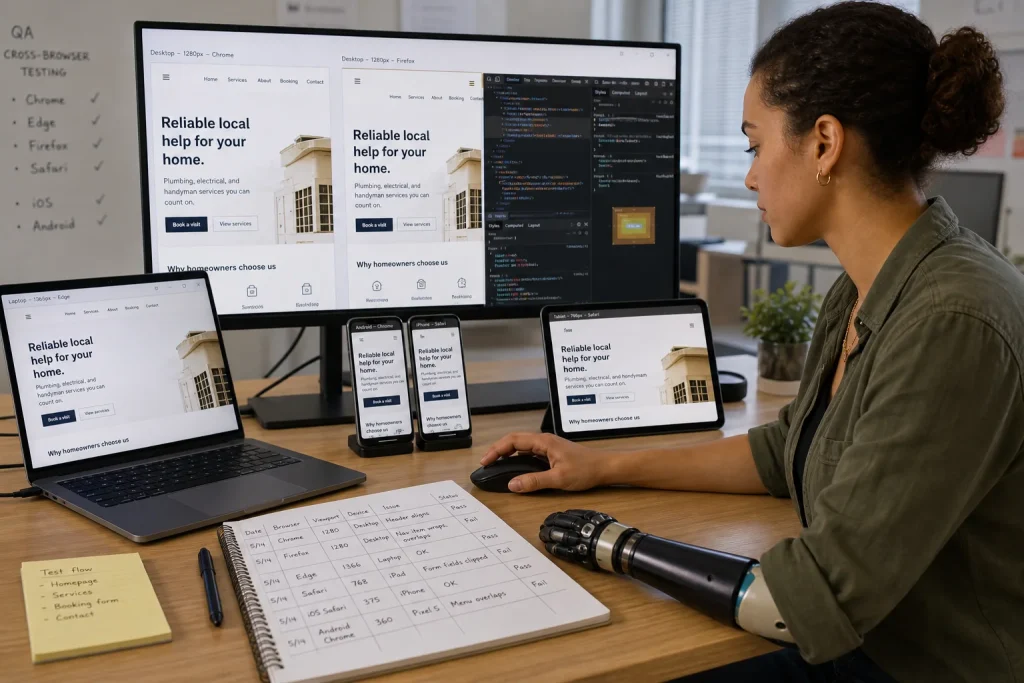
List the critical task down the left side and the supported environments across the top. A small business site might test navigation, search, contact forms, account login, and checkout in current Chrome, Edge, Firefox, Safari, one real iPhone, and one real Android device, adjusting that list with actual visitor data.
Run the same short script in every environment and record pass, fail, or not applicable. For a form, that means loading the page, using the keyboard, triggering a validation error, submitting valid information, and confirming the expected message or email rather than stopping when the fields appear.
Automated browser tests can make those repeated checks faster. Playwright, for example, can run tests across Chromium, Firefox, and WebKit, but automation should support real-device and accessibility checks rather than replace them.
Diagnose the layer that failed
When a problem appears, record the browser version, operating system, device, page, steps, expected result, actual result, console error when available, and whether extensions or privacy settings are involved. "It is broken in Chrome" is not enough to reproduce a failure.
Reduce the issue to HTML structure, CSS layout, JavaScript behavior, a third-party script, cached files, or a browser-specific feature. Then repair the cause and rerun the same task across the supported range.
Keep compatibility in the release process
Browser testing should happen before launch and after meaningful changes to navigation, forms, payments, authentication, scripts, or layout. Keep a short repeatable test list for the tasks that would cost the business most if they failed.
You do not need every visitor to see the same animation or spacing. You need them to receive the same information and reach the same outcome. That distinction keeps compatibility work focused on people completing real tasks instead of chasing pixel-perfect sameness across an impossible number of devices.