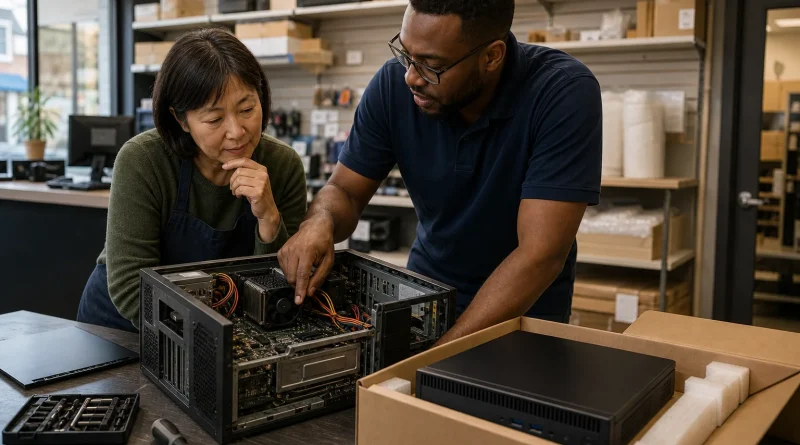
Should You Upgrade or Replace a Business Computer? How to Calculate the Real Cost
Replacing a slow business computer feels like a simple shopping decision until you start comparing the cost of a new machine with the cost of keeping the old one. The better question is not whether the computer still turns on. It is whether the machine can still do the work reliably, securely, and without wasting paid time.
You should compare the cost of one sensible upgrade with the full cost of replacement, including setup, software, migration, accessories, and downtime.
Start with the problem you are actually trying to fix
Write down what is slow or failing before you shop, because a computer that takes too long to start may have a storage or software problem, while a machine that struggles only when several applications are open may need more memory.
Windows includes System Information, which shows the processor, installed memory, system model, and other hardware details. Microsoft's System Information guide explains how to open and export that information.
Then record the applications, browser tabs, files, monitors, and peripherals used during a normal workday. Specifications matter because of the work they support, not because a larger number looks better on a product page.
Run the workload before you diagnose the hardware
Open the applications and files you normally use together, then press Ctrl+Shift+Esc to open Task Manager. Watch the Processes and Performance tabs for several minutes while you repeat the task that feels slow, because Microsoft notes that Task Manager can show CPU, memory, disk, and GPU activity in real time.
Do not make the decision from one brief spike. Repeat the same work twice and look for a pattern: memory that stays nearly full while the disk becomes busy may point toward a memory shortage, long file and application loading with sustained disk activity may point toward storage, and a processor that remains heavily used during the required task may be the limitation an inexpensive upgrade cannot remove.
Write down the task, the delay, and the resource that stayed busy. That small record gives you something more useful than "the computer feels slow" when you compare an upgrade quote with replacement.
Identify the upgrade that would change the result
Memory and storage upgrades can sometimes extend a computer's useful life. More memory may help when the machine slows under several simultaneous tasks, and replacing an older hard drive with a solid-state drive may improve startup and file access.
But an upgrade is poor value when the processor is the real limitation, the hardware cannot support a currently maintained operating system, or several components are already unreliable. Microsoft notes that processor compatibility, memory, storage, firmware, and security capabilities all affect Windows 11 eligibility.
You should also check whether the manufacturer still supplies firmware, drivers, batteries, and replacement parts. A cheap memory upgrade does not solve a failing battery, damaged charging port, unreliable fan, and unsupported operating system at the same time.
For example, if a dependable desktop has adequate processor performance but runs out of memory only when accounting software, a large spreadsheet, and several browser tabs are open, a compatible memory upgrade may address the measured problem. If the same machine also drops network connections, cannot run a supported operating system, and needs a new storage drive, the "cheap upgrade" has become several repairs attached to an aging system.
Calculate the cost people usually leave out
Suppose an employee loses ten minutes each morning to startup delays and another ten minutes throughout the day to freezes. At 250 workdays, that is more than 80 hours of lost time before you count support calls or interrupted customer work.
Compare these costs:
- the part and labor for the upgrade;
- the expected life of the rest of the machine;
- time spent diagnosing recurring problems;
- employee downtime and lost work;
- software or accessory compatibility;
- data migration and secure disposal; and
- the new computer's warranty and support.
The lowest purchase price is not automatically the lowest operating cost, but an expensive new machine is not automatically justified when a targeted upgrade removes the actual bottleneck either.
Use a practical replacement rule
You should replace the computer when it cannot run supported software securely, its failures are unpredictable, the required upgrade approaches the value of a suitable replacement, or downtime is costing more than the machine is worth.
You should consider upgrading when the rest of the system is dependable, the limitation is clearly identified, the part is compatible, and the improvement will support the work for a reasonable period. Ask the technician to explain what the upgrade will change and what it will not.
Before either choice, confirm that your files are backed up and that you can restore them. The best hardware decision is the one that removes a measured problem without creating a larger migration or security problem.